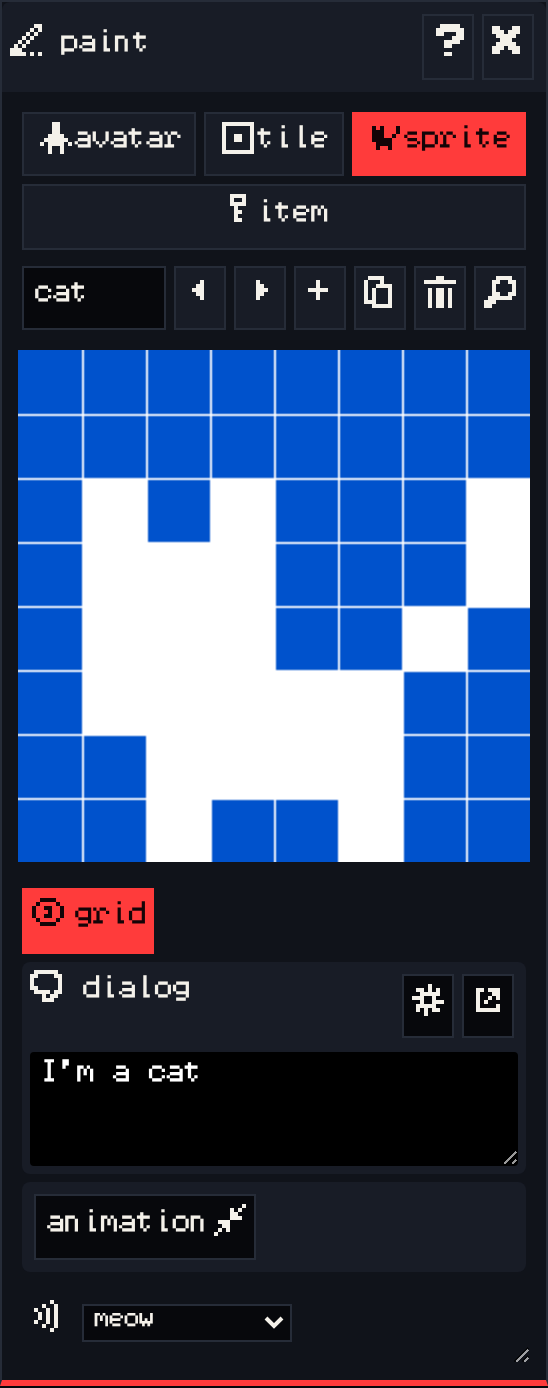
The paint window is where you draw everything in your game. Every drawing is 8×8 pixels.
Drawing types #
Choose what to draw with the buttons at the top:
- avatar: the player’s character. There is only one, so the list buttons are disabled.
- tile: scenery.
- sprite: characters and objects the player can talk to.
- item: things the player picks up.
Below them, the text box is the drawing’s name, followed by previous, next, add, duplicate, delete, and find.
Drawing #
Click a pixel to fill it with the drawing color, click it again to clear it. You can click and drag to draw lines. grid shows or hides the pixel grid.
Drawings use their room’s palette: tiles use the tile color, and the avatar, sprites and items use the sprite color. Unfilled pixels show the background color.
Options #
The options under the grid depend on the drawing type:
- wall (tiles only): makes the tile solid, so the avatar can’t walk onto it.
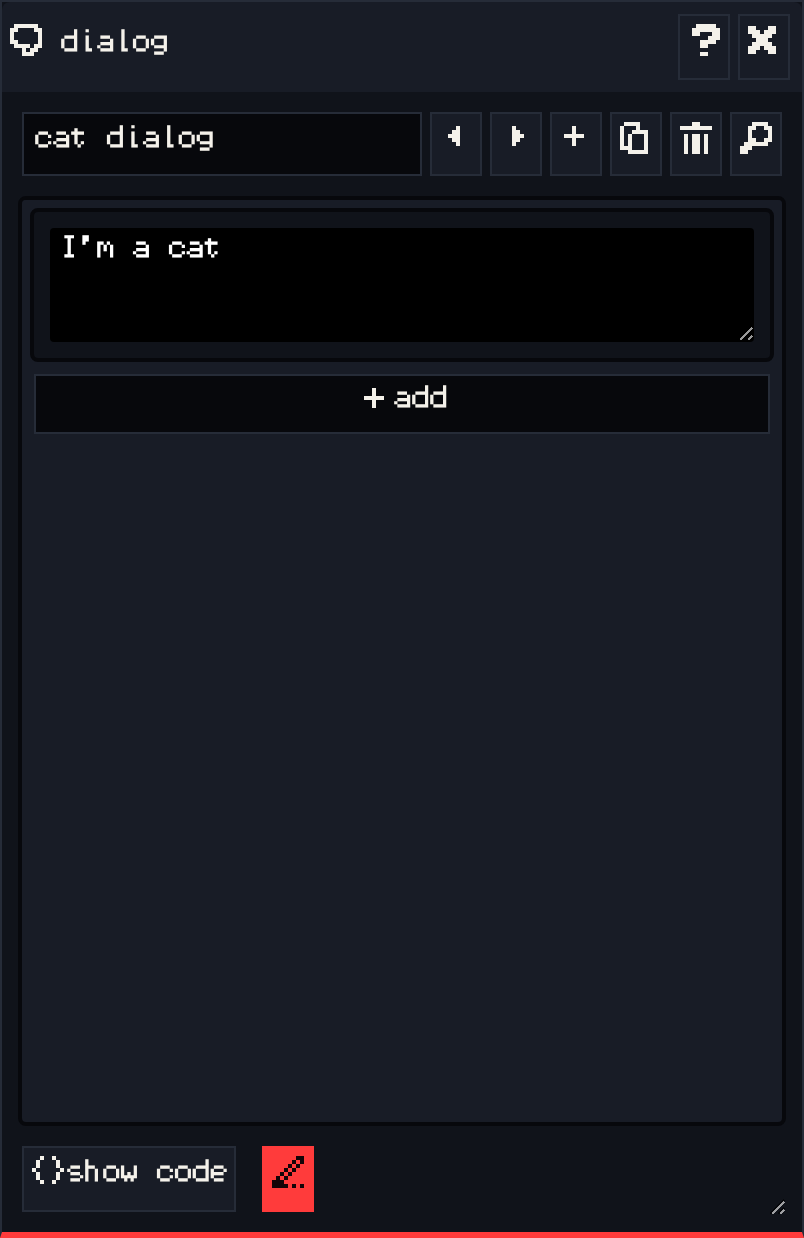
- dialog (sprites and items): what the sprite says when the avatar bumps into it, or the message shown when an item is picked up. The buttons next to it open the full dialog window.
- animation: adds a second frame. The drawing switches between frame 1 and frame 2 about every 400 ms, and preview shows the animation.
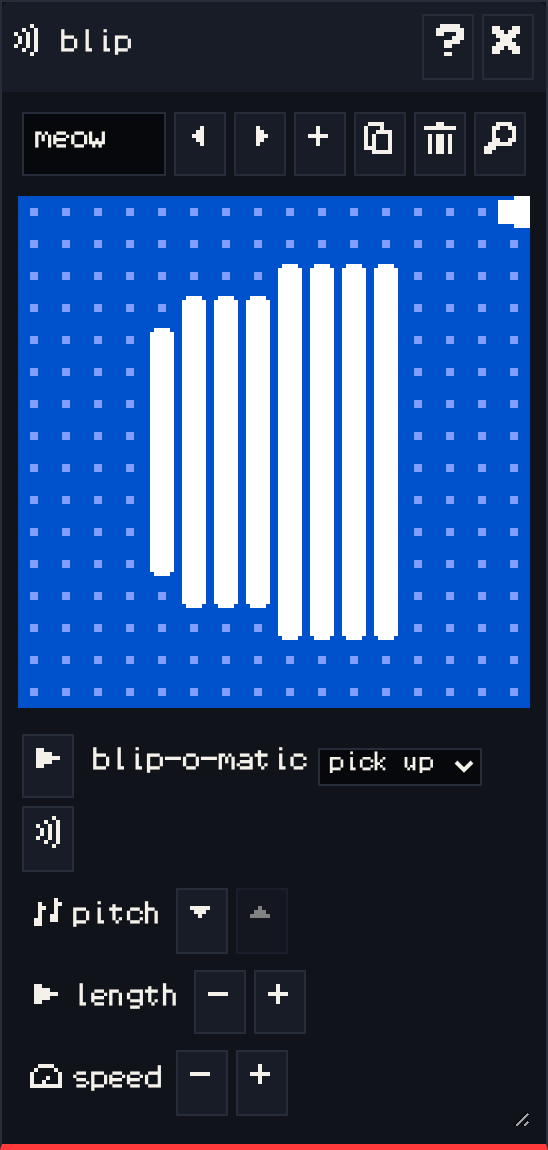
- blip (sprites and items): a sound effect that plays when the avatar interacts with it. Blips are made in the blip window.
See also: The avatar and sprites and Items.