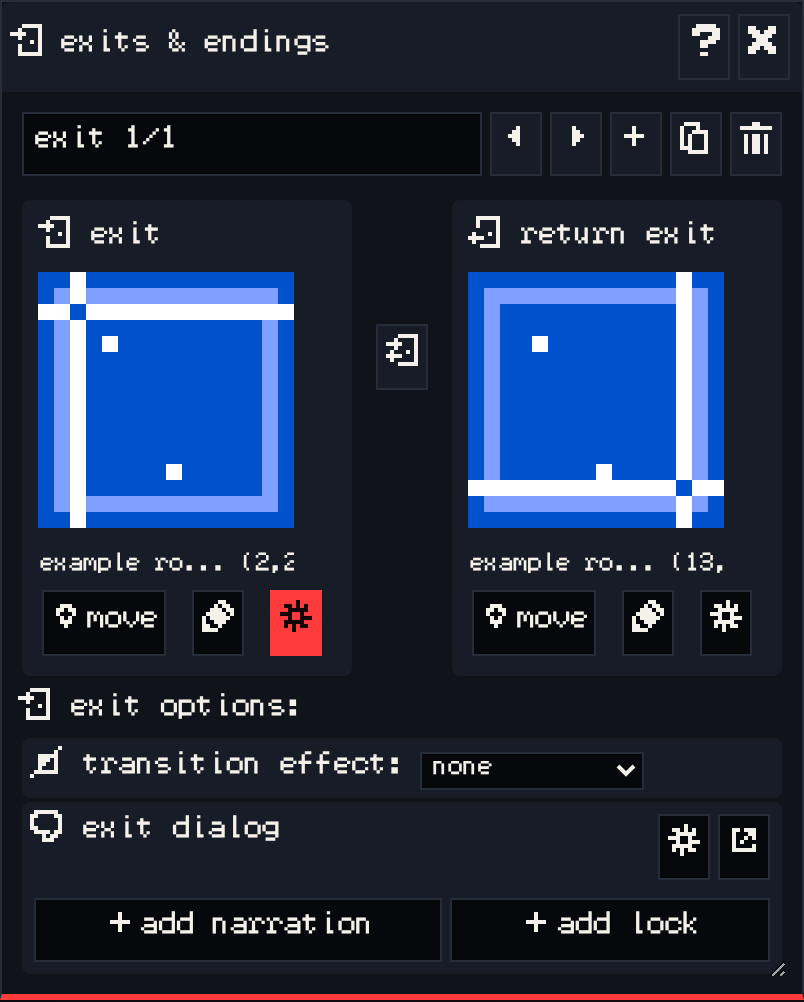
The exits & endings window lists the exits and endings in the current room. The bar at the top steps through them (previous, next), adds a new one, duplicates or deletes the selected one.
Adding #
Press add and choose:
- exit: a two-way door. It has an exit and a return exit.
- one-way exit: goes one way only.
- ending: ends the game with its dialog.
Markers #
Each end of an exit is a marker with a small preview of its room and its coordinates.
- move: then click in the room window to place the marker. Click the preview to open the marker’s room first if it belongs in another room.
- The pencil edits the room and x, y coordinates as numbers.
- The gear shows or hides that end’s exit options.
Exit options #
- transition effect: none, fade (white), fade (black), wave, tunnel, or slide up, down, left or right. The return exit has its own.
- exit dialog: text or script that runs when the avatar steps on the exit. add narration adds a line like “You walk through the doorway”. add lock adds a script that only lets the player through with an item, and otherwise keeps the exit locked.
Endings have an ending dialog instead: the final text of the game. Endings can be locked the same way.
See also: Exits and endings.