Exits move the avatar from one room to another. Endings finish the game. Both live in the exits & endings window; open it from the toolbar or from the room window.
Add an exit #
- Open the room the exit starts in.
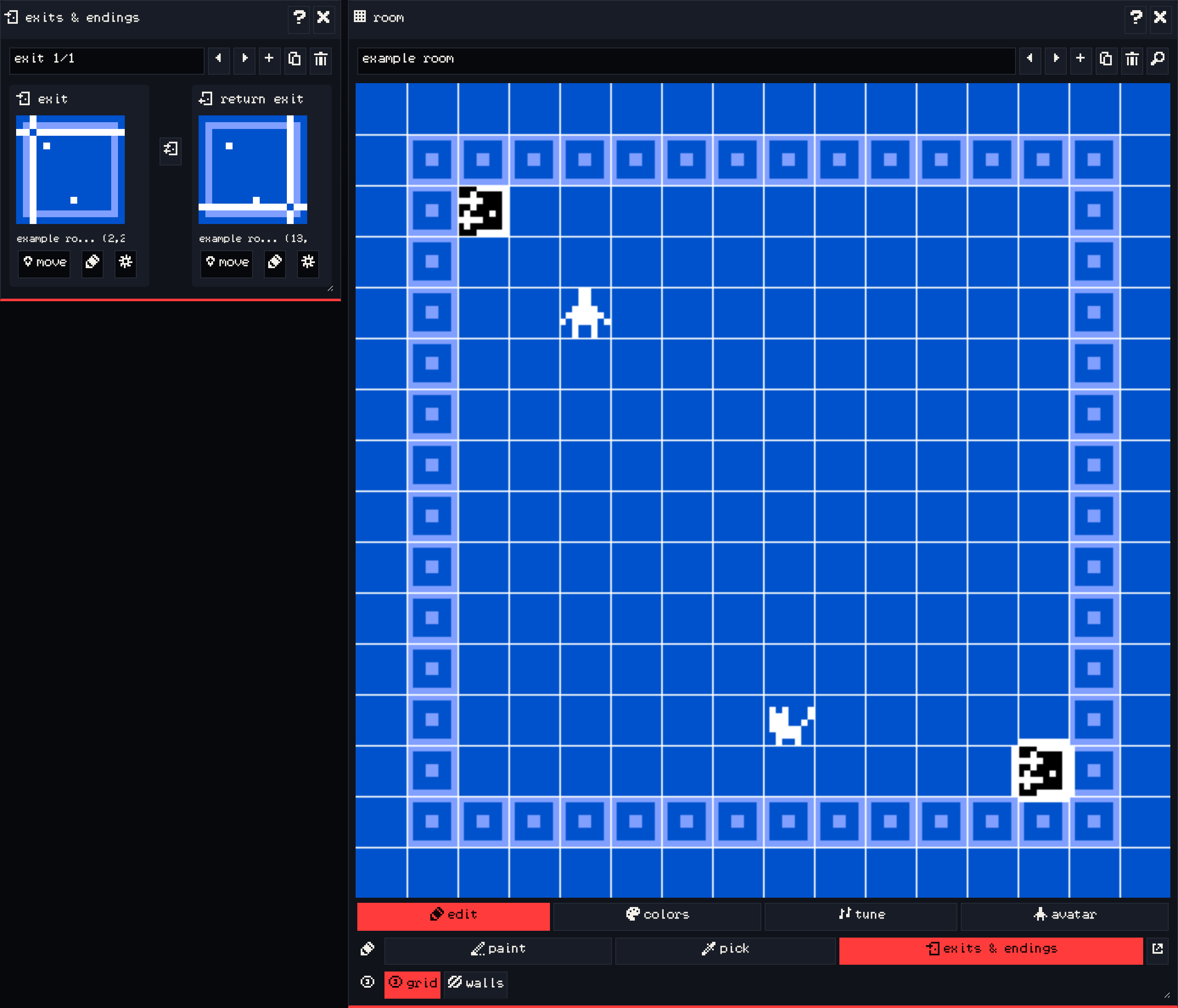
- In the exits & endings window, press add and choose:
- exit: a two-way door. Walking onto one end takes you to the other, and back again.
- one-way exit: takes the player to the destination, with no way back through it.
- Each end of the exit is a marker with a small room preview. For each one, press move and then click a square in the room to place it. To place the destination in another room, click the marker’s preview to open that room, then place it there.
When the avatar steps onto an exit, it appears at the other end in the destination room. Put the destination one step inside the new room, not on top of its own return exit, or the player bounces straight back.
The arrows in the window step through the exits and endings in the current room. duplicate and delete work on the selected one.
Transitions #
Open an exit’s options to pick a transition effect: fade to white or black, wave, tunnel, or slide in any direction. A two-way exit has separate options for the return trip. Slides work well for walking between neighboring areas; fades suit doors and stairs.
Add an ending #
- Press add and choose ending.
- Press move and click where the ending should be.
- Write the ending’s text in the ending dialog box under the marker. It is the last thing the player reads.
When the avatar steps onto an ending, its text plays and the game ends. The player can then start again from the beginning.
A game can have several endings, for example one for each choice the player makes.
Exit dialog and locked doors #
Open an exit’s options to give it an exit dialog, which plays when the avatar steps on it. There are two presets:
- add narration: a line of text, like “You walk through the doorway”.
- add lock: the door only opens if the player has an item. The preset checks for an item, unlocks the exit and says “The key opens the door!” if the player has one, and otherwise keeps it locked with “The door is locked…”. Change the item and the text in the dialog editor to fit your game.
Endings can be locked the same way through their dialog. The lock is set with the lock / unlock action from room actions; see Dialogue for how branches and actions work.
You can also move the player or end the game from dialog directly, with the exit and end room actions. That is how a sprite can send the player somewhere after a conversation.
Next #
Play your game, save it, and put it on VGC Zero in Test and publish.