Test in the editor #
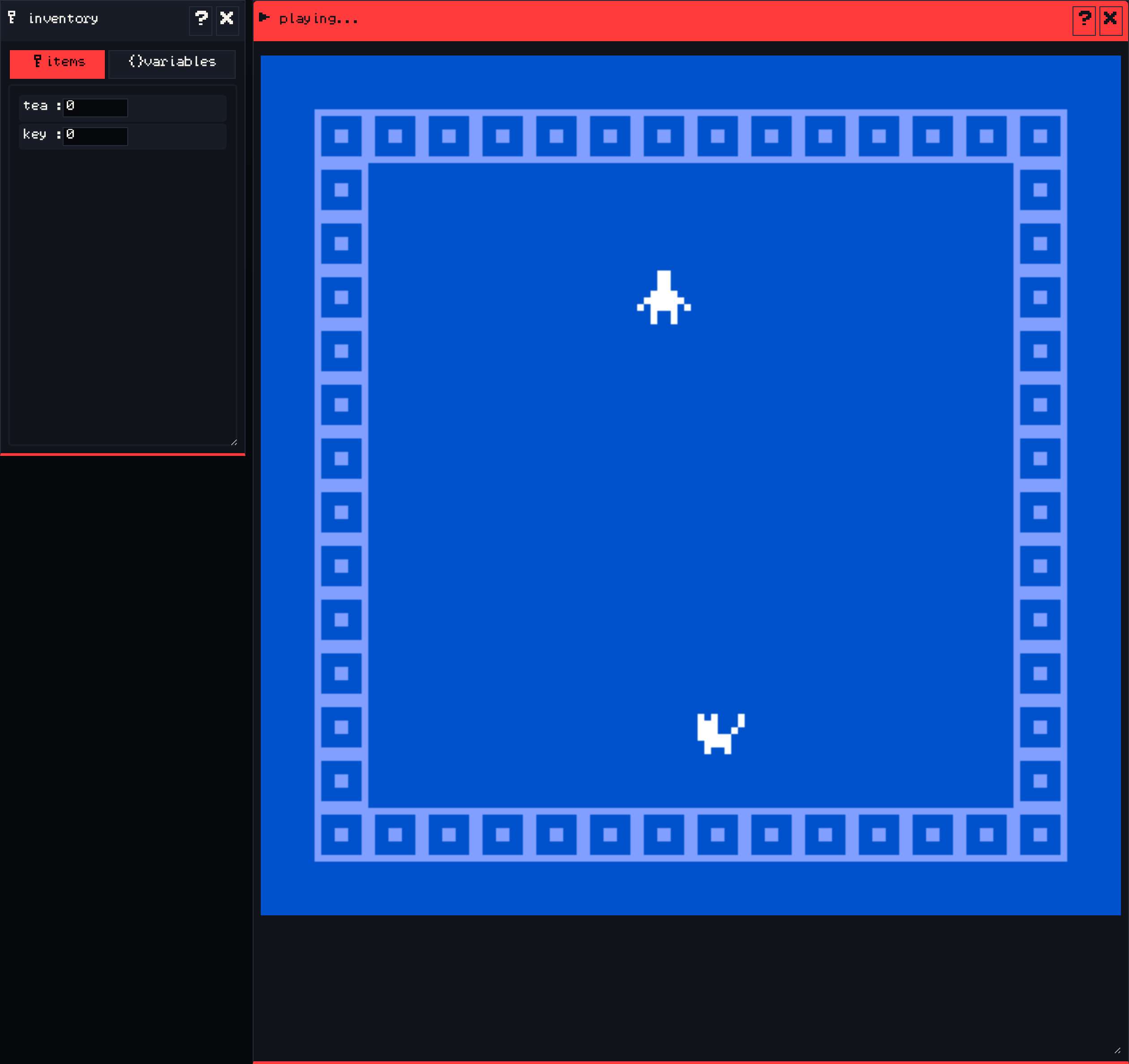
Press play (the green triangle at the top of the toolbar) to play from the start. The Creator runs your game with Citsy, the same engine that runs it on VGC Zero, so what you see is what the handheld shows. Press play again to stop and go back to editing.
| Action | Keyboard | VGC Zero |
|---|---|---|
| Walk | Arrow keys or WASD | D-pad |
| Talk, advance dialog | Z | A |
While you play:
- Keep the inventory window open to watch item counts and variables change.
- Walk into every sprite and through every exit at least once.
- Reach every ending. If a locked exit or branch never opens, check the condition in the dialog.
When a moment looks good, press save image while the game is playing. It saves that frame as your game’s cover picture on the platform.
Save and back up #
Your game saves to your Chili account automatically while you edit. Your saved games are in the Projects tab of your profile.
To keep a copy of your own, open the game window, go to its save tab, and choose save data under .bitsy. That downloads your game as a plain text .bitsy file. load data opens a .bitsy file, including games made in the standard Bitsy editor at bitsy.org.
Publish to the platform #
Publishing takes two steps: release the game, then list it on the marketplace. You need a verified email address for both.
- Release. Open your profile, go to Projects, and choose Release on the game. Releasing turns the project into a finished game. It is not on the marketplace yet.
- List. On your profile, open your released game’s Listing. Set a price, free or at least €1, and publish it. The first time, you accept the seller terms.
Players can then find the game on the marketplace, add it to their library, play it in the browser, and download its .bitsy file. You can update or unlist the listing later. The platform help article List a game for sale has the details on pricing and payouts.
Play it on VGC Zero #
VGC Zero plays Bitsy games with the Citsy player.
- Get your game’s
.bitsyfile: save data in the editor, or Download .bitsy from the game’s page on the marketplace. - Flash the Citsy player if it is not on your handheld yet: download the VGC build from the citsy-32blit releases, hold BOOT, tap RESET, and copy the
.uf2file to the drive that appears. See Announcing Citsy for more ways to flash it. - Copy the
.bitsyfile onto the SD card. - Start Citsy. Your game appears in the launcher list next to the bundled games. Choose it and press A.
Press MENU in a game to pause, restart, or go back to the launcher.
No handheld yet? Drop the .bitsy file into the web player or the desktop build of Citsy to see it the way VGC Zero shows it.
Share it #
Show your game in the forum or on Discord. We love seeing what people make.