Dialog is the text that appears when the avatar talks to a sprite, picks up an item, or reaches an ending. The game’s title, set at the top of the game window, is the first thing the player sees.
Write simple dialog #
- Select a sprite or item in the paint window. The dialog window shows its text.
- Type what it says. Long text wraps onto several pages automatically; the player presses a button to advance.
On VGC Zero the player advances dialog with A. In the web player it is Z, and arrow keys or WASD move.
Text effects #
Select some text and use text effects to make it wavy, shaky, rainbow-colored, or a different color from the palette. Effects work best on a word or two, for emphasis.
Add blocks #
Press add in the dialog window to add more than plain text. The options are grouped:
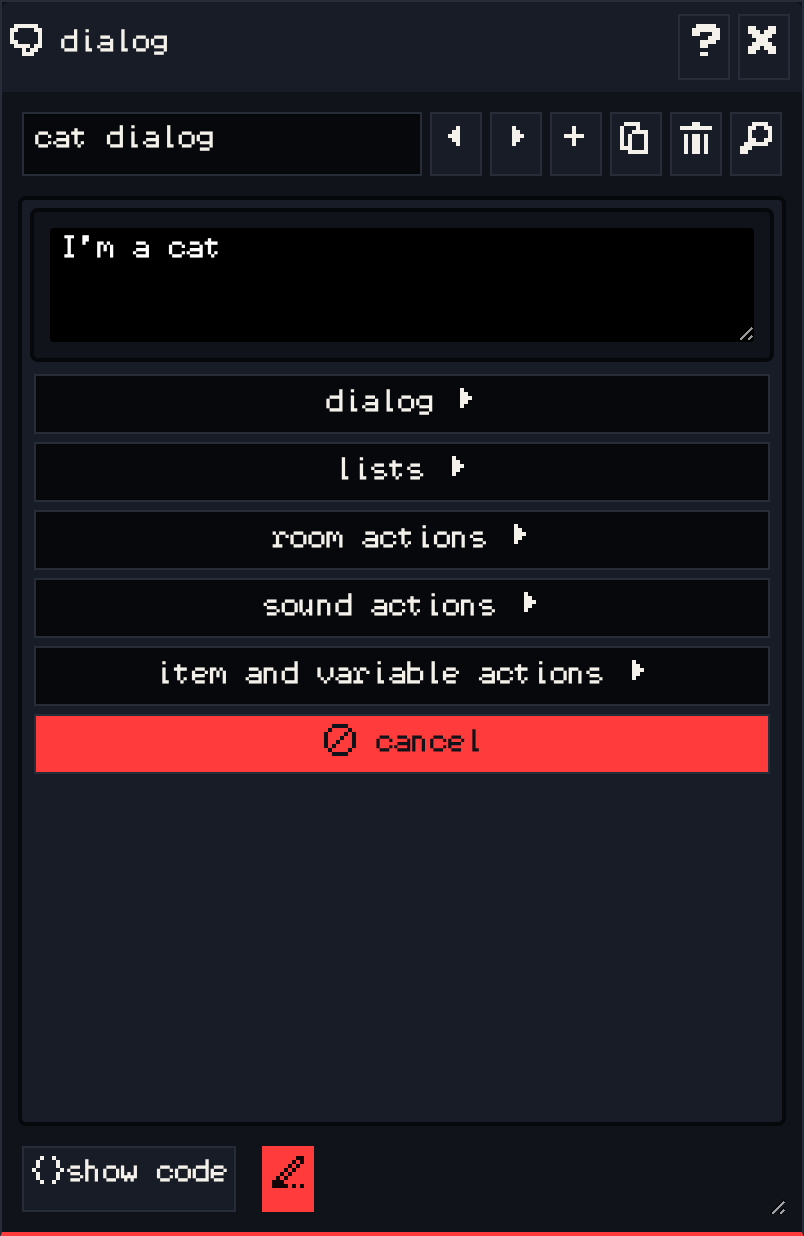
- dialog: another block of text, or a pagebreak to start a new page.
- lists: text that changes each time the player talks to the sprite.
- sequence list goes through each item once, then keeps repeating the last one. Good for a conversation that moves forward.
- cycle list repeats its items in order, forever.
- shuffle list picks one at random each time.
- branching list shows the first branch whose condition is true. Branches can check an item count or a variable.
- room actions: move the player to another room (exit), end the game, lock / unlock an exit or ending, or change the room’s palette or the avatar.
- sound actions: play a blip or change the tune.
- item and variable actions: give or take items, show how many of an item the player has, or set and change variables.
Each block has its own controls in the dialog window, so you build logic by clicking rather than typing code. If you are curious, show code reveals the Bitsy script behind it.
Example: a door guard #
A guard who only lets the player through with a key:
- Draw a
guardsprite and place it in a doorway. - In the guard’s dialog, add a branching list from lists with an item branch: if
keyin inventory is at least 1. - In that branch, write “Ah, you have the key. Go ahead.” and add an exit from room actions that moves the player to the next room.
- In the default branch, write “Nobody passes without a key.”
Now scatter a key item somewhere in the first room and play it through.
Variables #
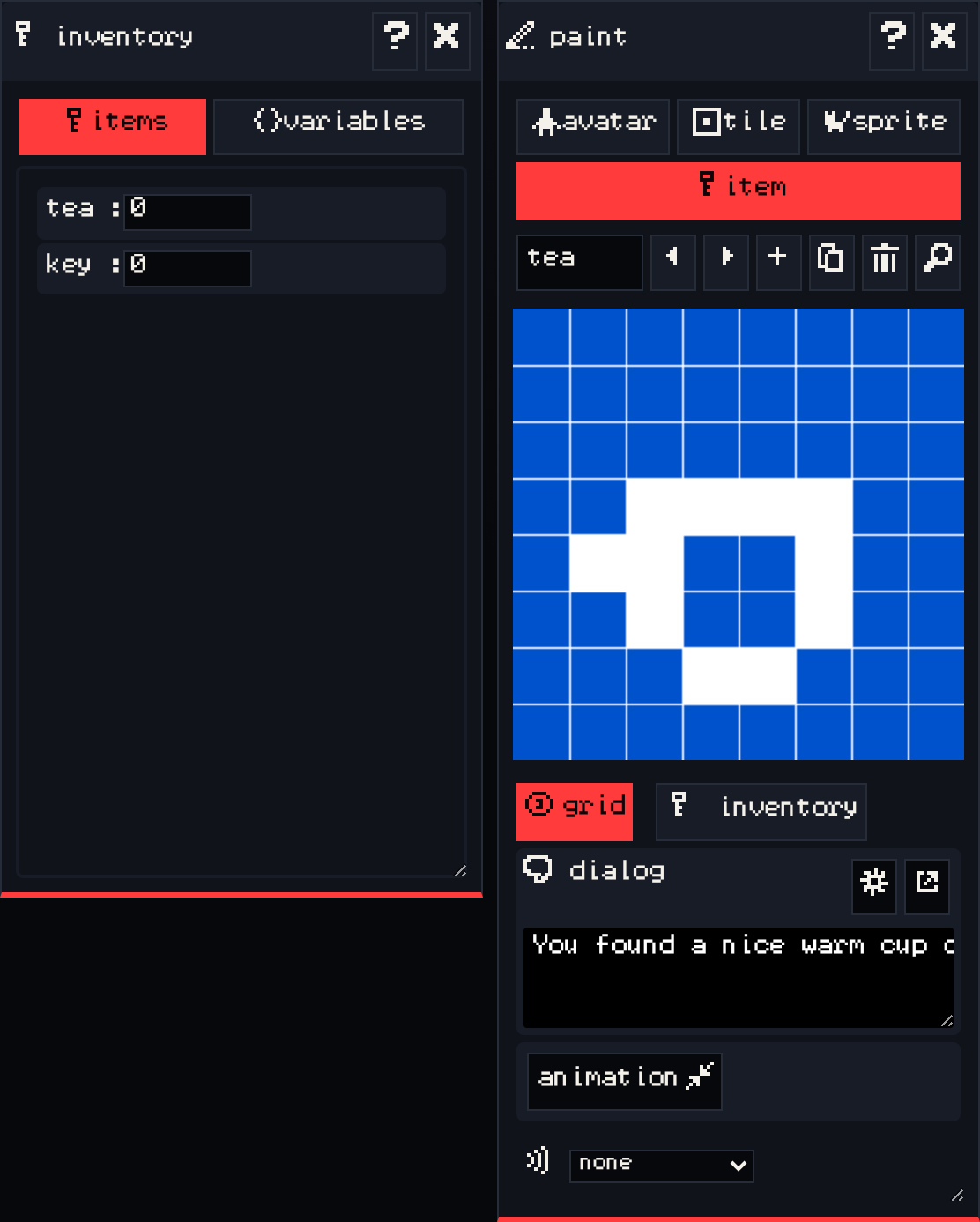
Variables remember things the player has done that are not items, like whether they have already met someone. Create them in the variables tab of the inventory window, change them with set variable value or change variable value, and check them with a variable branch.
Preview while you write #
Press preview in the dialog window to see the text the way it appears in the game, or press play and walk into the sprite.
Next #
Connect your rooms and finish the story in Exits and endings.