A room is one screen of your game: a 16×16 grid of tiles. A new game starts with one room, the avatar, a sample tile, a sample sprite and a sample item.
Paint a room #
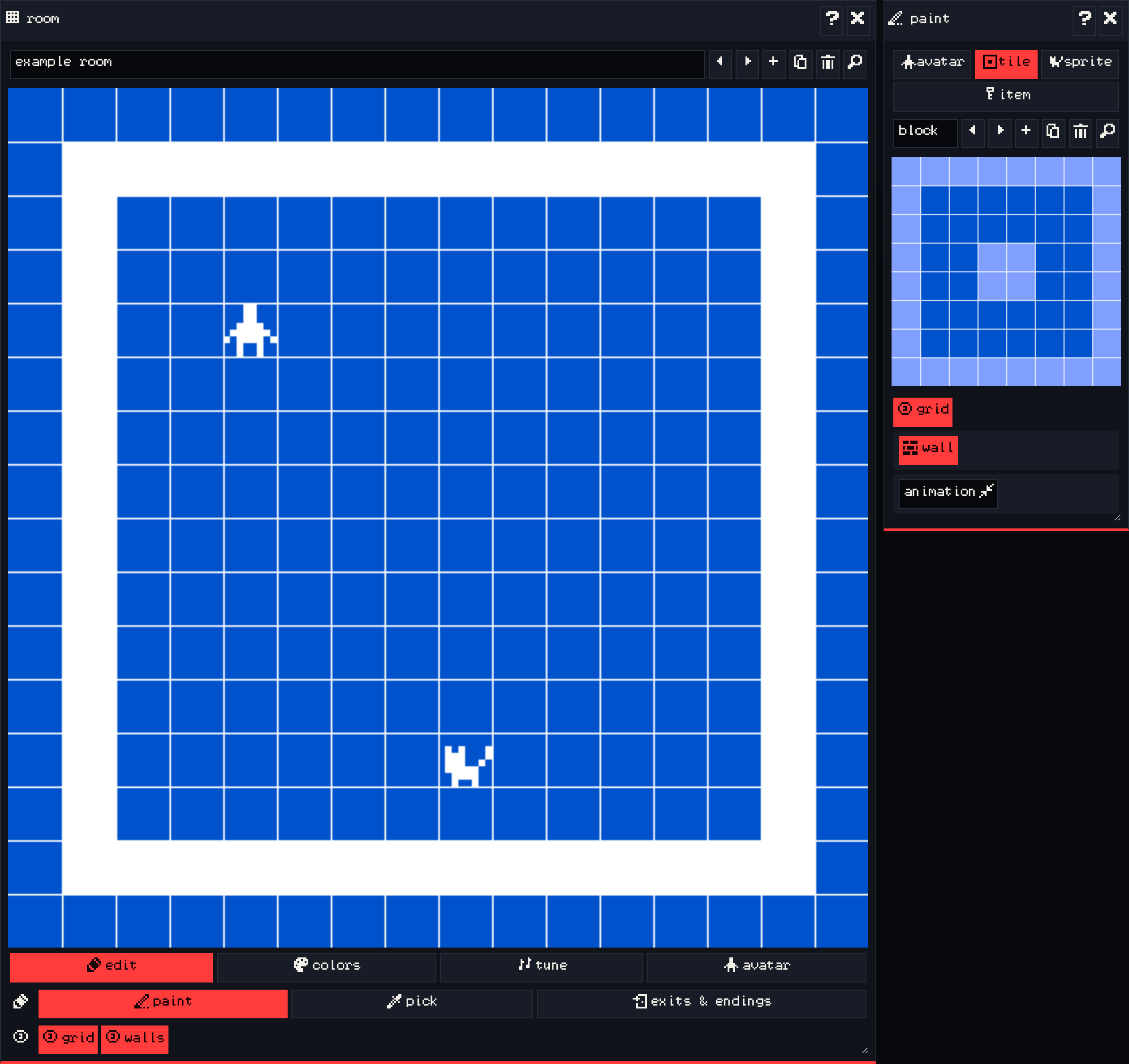
- In the paint window, choose tile. A new game has one tile; draw on the large grid to change it. Click a pixel to fill it, click it again to clear it.
- In the room window, open the edit tab and make sure paint is selected.
- Click a square in the room to place the selected tile there. Click it again to remove it.
To use a different tile, choose it in the paint window first. Use the arrows to step through your drawings, or add (the plus) to make a new one. pick in the room window selects the drawing you click on, so you can paint with it.
Tip: give drawings names in the text box at the top of the paint window. Names make them easy to find later in the find window and in dialog.
Walls #
Tick wall in the paint window to make the current tile solid. The avatar cannot walk onto a wall tile. Use walls for the edges of the room, trees, furniture and anything else the player should walk around.
The room window can highlight every wall tile: in its edit tab, turn on walls. grid next to it shows or hides the tile grid.
Add more rooms #
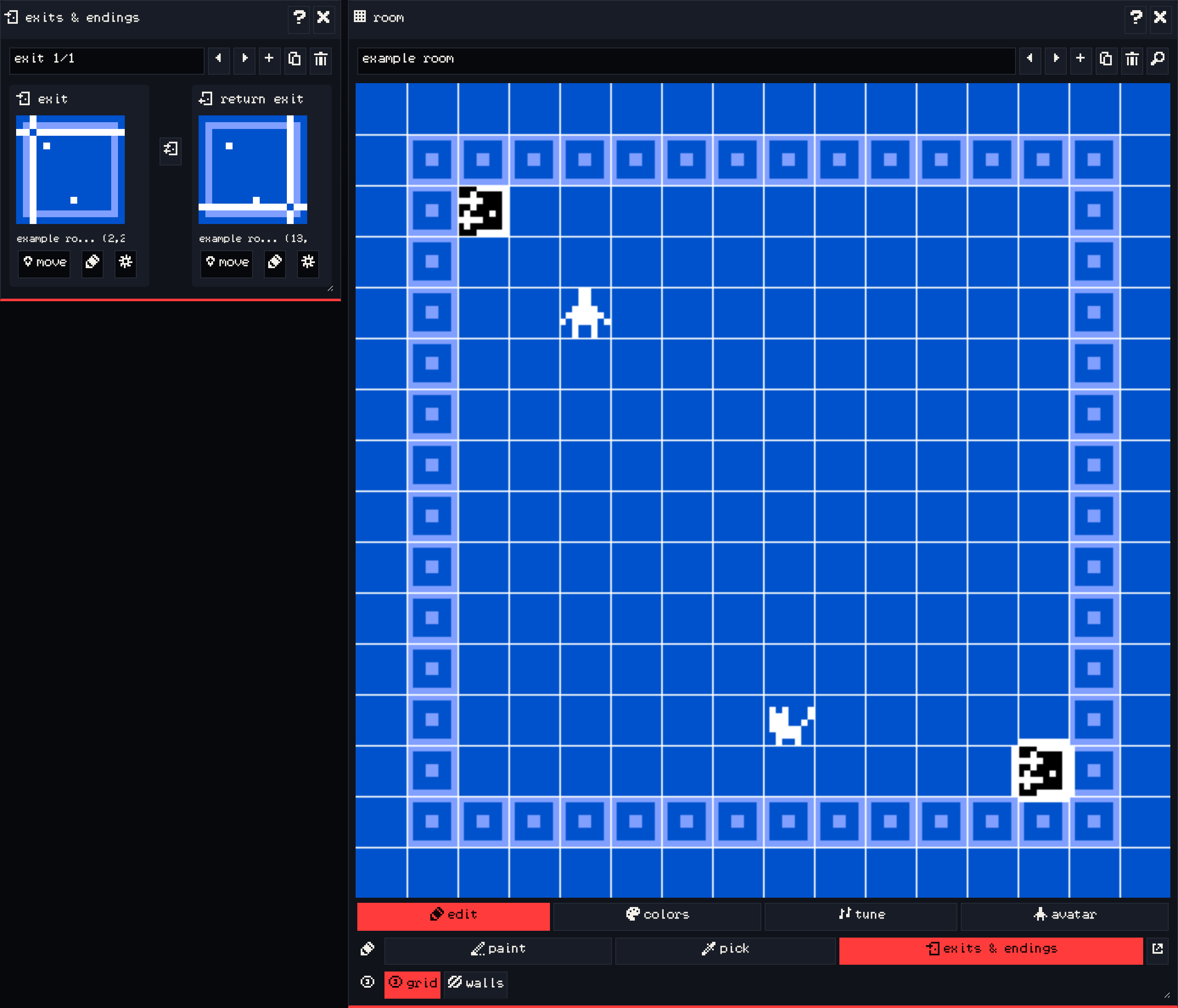
The room window has the same arrows and buttons as the other windows: step to the previous or next room, add a room, duplicate the current one, or delete it. Name each room so you can tell them apart when you link them with exits.
Rooms are not connected until you add exits.
Colors #
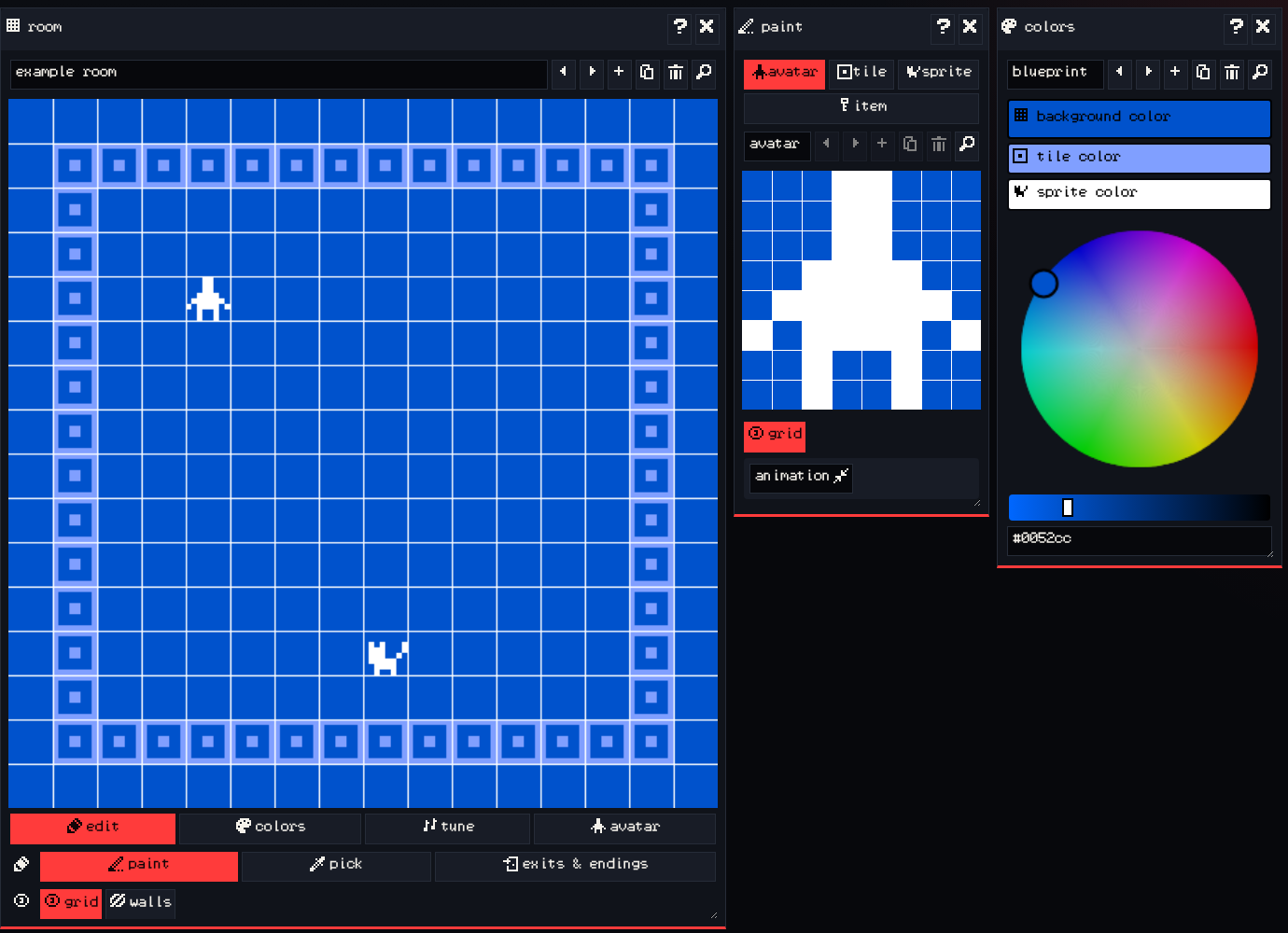
Each room uses a palette of three colors:
- background color for empty space and the unfilled pixels of every drawing,
- tile color for tiles,
- sprite color for the avatar, sprites and items.
Edit a palette in the colors window: pick one of the three slots, then choose a color with the picker or type a hex code. You can add more palettes and choose which one a room uses in the room window’s colors tab. Different palettes per room are an easy way to make a forest feel different from a cave.
Animation #
Tick animation in the paint window to give a drawing a second frame. Bitsy switches between frame 1 and frame 2 about every 400 milliseconds. Use it for water, flickering torches, or a character that bobs while it waits.
Next #
Draw the player and the characters they meet in The avatar and sprites.