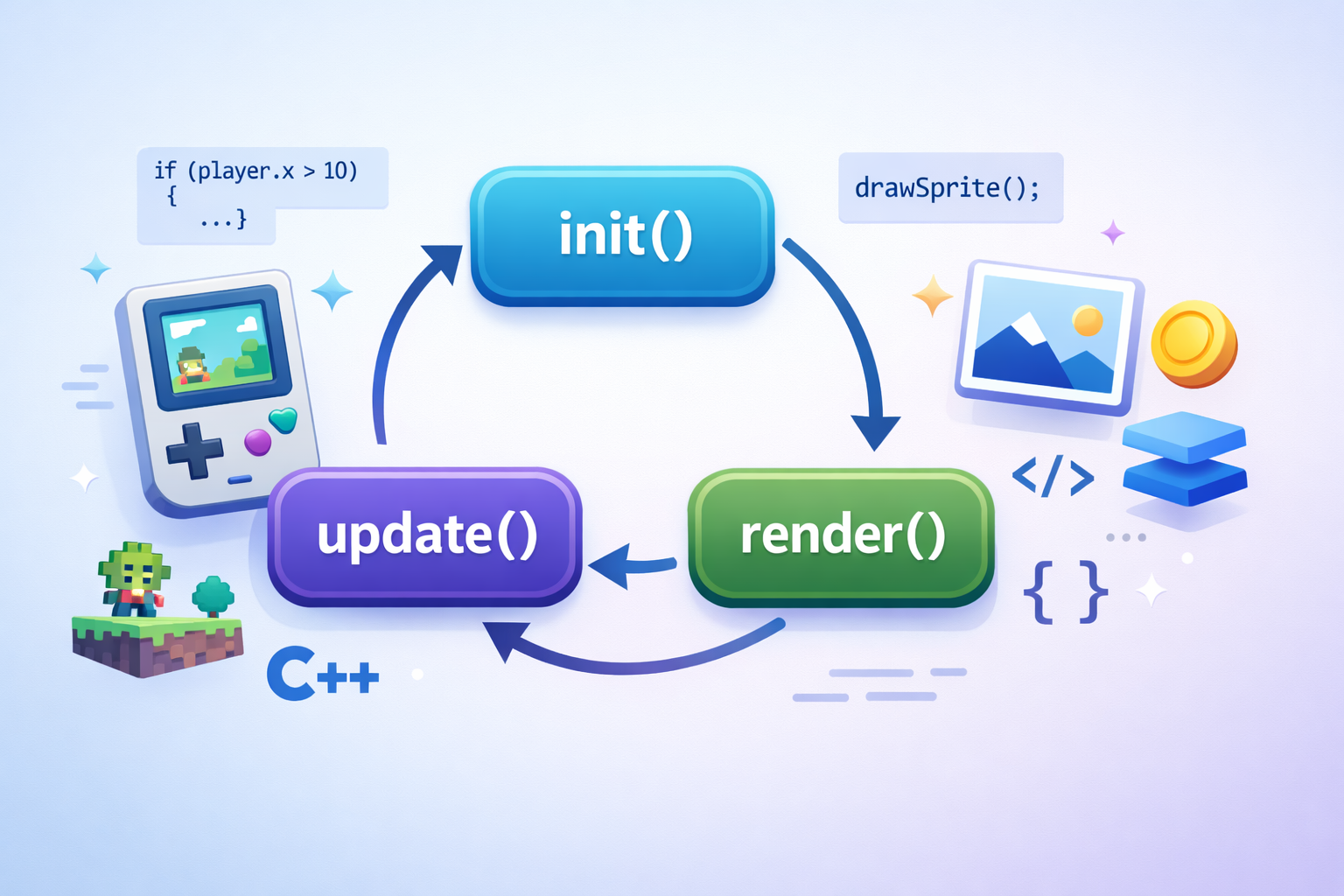
This section covers sprite handling and rendering capabilities of the Game SDK for VGC Zero. It includes information on loading sprites from assets, drawing them in various ways, and managing sprite collections.
Sprite sheets #
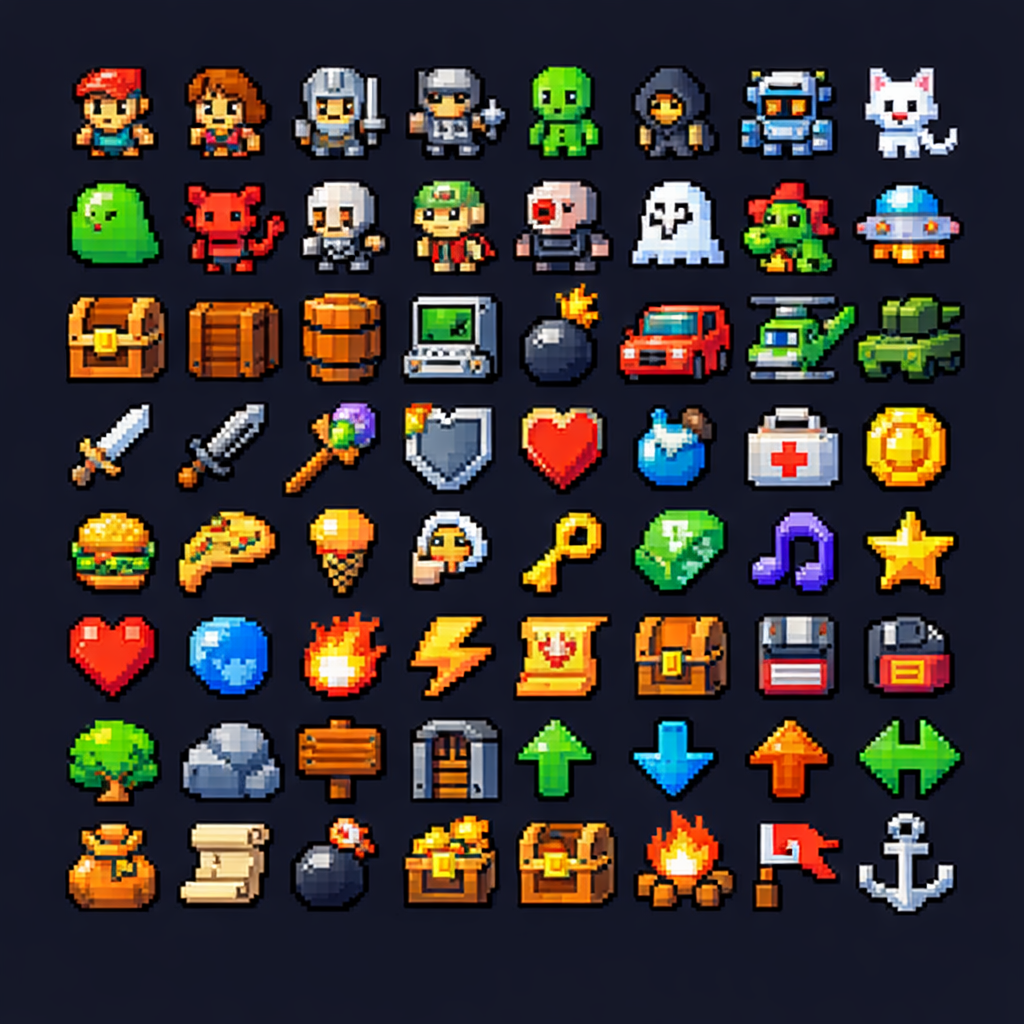
32blit supports 128×128 pixel sprite sheets containing 64 8×8 sprites. The engine is optimized for these dimensions, though larger assets can be represented using multiple sheets.
Since 32blit has no hardware sprite engine, there is no hard limit on displayed sprites. However, excessive sprite use will impact framerate.
Loading sprites #
Sprites are typically loaded via the asset pipeline, which converts PNG images into packed, palette-based assets.
Using the asset pipeline #
Given an assets/sprites.png file (128×128 pixels), define it in assets.yml:
assets.cpp:
  assets/sprites.png:
    name: asset_sprites
Register the asset in CMakeLists.txt:
blit_assets_yaml(application-name assets.yml)Include the generated header and load the sprite sheet in your init() function:
#include "assets.hpp"

void init() {
  screen.sprites = Surface::load(asset_sprites);
}
Manual sprite loading #
You can also load sprites manually if you have packed sprite data:
Surface *more_sprites;

void init() {
  more_sprites = Surface::load(packed_data);
}
Since the sprite sheet is a Surface, it can be copied using blit():
// Copy an 8x8 region from the sprite sheet to screen
screen.blit(more_sprites, Rect(0, 0, 8, 8), Point(0, 0));blit() offers more flexibility than sprite drawing functions and can copy non-aligned regions, though with a slight performance cost.
Drawing sprites #
By index #
A 128×128 sprite sheet contains 64 8×8 sprites numbered 0–63 from left to right, top to bottom. Sprite 0 is top-left; sprite 7 is top-right. The next row starts at sprite 8.
Draw a sprite by index at a given point:
screen.sprite(uint8_t index, Point p)
screen.sprite(1, Point(30, 30)); // Draw sprite 1 at (30, 30)
By location #
Sprites can be addressed by column (0–15) and row (0–15). A Point specifies the location on the sprite sheet, and another Point specifies the screen position.
screen.sprite(Point(0, 1), Point(30, 30)); // Draw sprite at row 0, column 1, to screen (30, 30)
In groups #
Use a Rect to draw multiple sprites at once. The Rect specifies the starting column/row and the width/height in sprite units.
Draw the first four sprites of the top row:
screen.sprite(Rect(0, 0, 4, 1), Point(0, 0)); // 4 wide, 1 tall
Draw a 2×2 grid of the four top-left sprites:
screen.sprite(Rect(0, 0, 2, 2), Point(0, 0)); // 2 wide, 2 tall
Using a tilemap #
For large groups of sprites (such as level layouts), use a TileMap—a 2D array of tile IDs with optional attribute flags. This approach is more efficient for managing complex sprite-based scenes.
See the TileMap documentation for details on construction and rendering.