This section covers the graphics capabilities and API of the Game SDK for VGC Zero. It includes information on basics of drawing and drawing shapes.
Drawing basics #
The Game SDK provides a variety of functions for drawing shapes, images, and text to the screen.
The screen is an instance of a Surface class, stored in a global variable - which means you can access it directly from anywhere in your code.
The Surface class represents a 2D drawing surface, and provides methods for rendering graphics.
The Pen class represents a color, which can be created using RGB values or predefined colors.
Below are listed all the drawing functions available in the SDK. You can call those methods on any Surface instance.
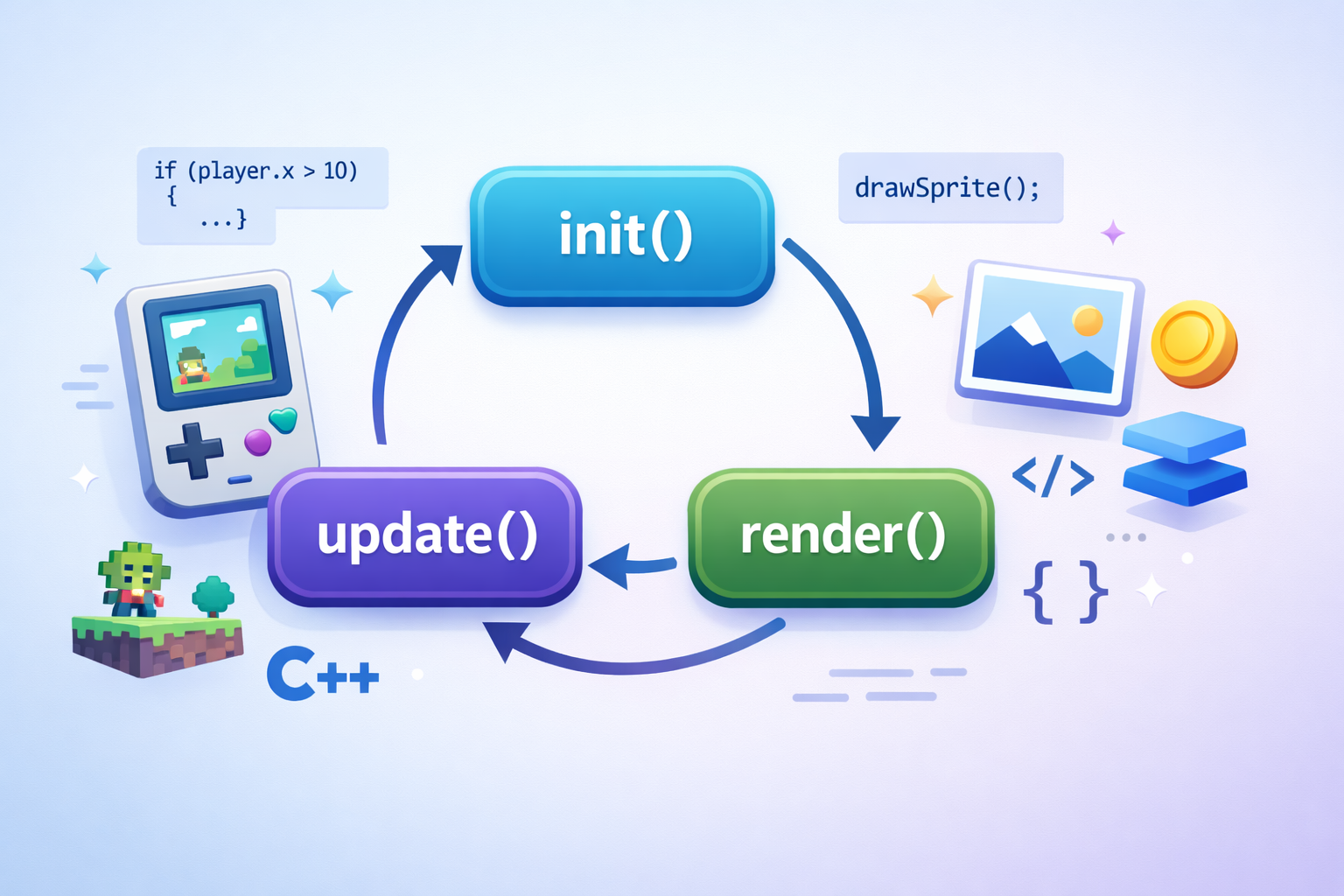
You should call all drawing functions within the render function, which is called once per frame.
void render(uint32_t time) {
    // Drawing code goes here
}Use blit namespace to avoid prefixing all calls with blit::.
using namespace blit;Setting the pen color #
Before drawing, you need to set the pen color. To set the current pen color, create a Pen object and assign it to the pen property of the Surface.
screen.pen = Pen(255, 0, 0); // Set pen color to red
Clearing the screen #
To clear the screen, you can use the clear() method.
screen.pen = Pen(0, 0, 0); // Set pen color to black
screen.clear(); // Clear the screen (fill with black)
Drawing shapes #
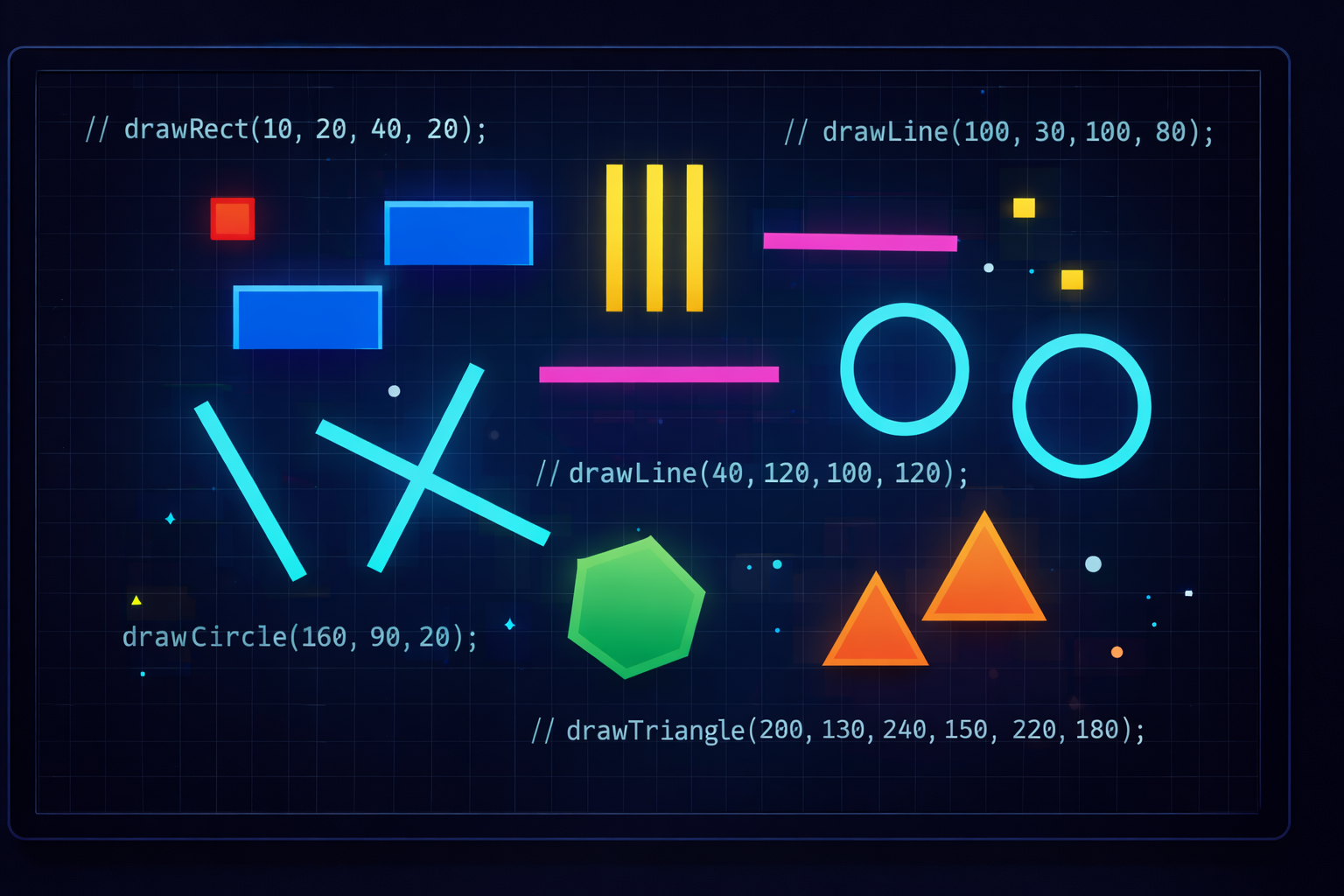
You can draw various shapes using the following methods:
Pixel #
To draw a single pixel on the surface, use the pixel() method. This method takes one parameter: a Point object representing the coordinates of the pixel to draw.
screen.pixel(Point &p)
screen.pen = Pen(0, 0, 0); // Set pen color to black
screen.clear(); // Clear the screen (fill with black)
screen.pen = Pen(255, 0, 0); // Set pen color to red
screen.pixel(Point(64, 64)); // Draw a pixel (red) at (64, 64)
Rectangle #
To draw a filled rectangle on the surface, use the rectangle() method. This method takes one parameter: a Rect object representing the position and size of the rectangle to draw.
screen.rectangle(Rect &r)
screen.pen = Pen(0, 0, 0); // Set pen color to black
screen.clear(); // Clear the screen (fill with black)
screen.pen = Pen(255, 0, 0); // Set pen color to red
screen.rectangle(Rect(10, 10, 50, 100)); // Draw a red rectangle at (10,10) with width 50 and height of 100
screen.pen = Pen(0, 0, 255); // Set pen color to blue
screen.rectangle(Rect(80, 10, 34, 15)); // Draw a blue rectangle at (80,10) with width 34 and height of 15
screen.pen = Pen(0, 255, 0); // Set pen color to green
screen.rectangle(Rect(46, 50, 20, 40)); // Draw a green rectangle at (46,50) with width 20 and height of 40
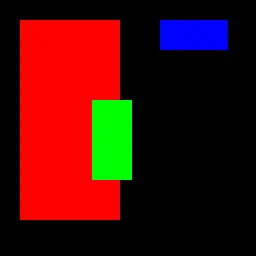
Notice how the rectangles overlap. The last rectangle drawn appears on top of the previous one. This is because drawing operations are performed in the order they are called.
Vertical span #
To draw a vertical line segment, use v_span(). The Point sets the starting coordinate, and the int16_t value sets how many pixels to draw downward from that point.
screen.v_span(Point p, int16_t c)
screen.pen = Pen(0, 0, 0);
screen.clear();
screen.pen = Pen(255, 255, 0);
screen.v_span(Point(64, 20), 80); // Draw a vertical yellow span 80 pixels tall starting at (64, 20)
Horizontal span #
To draw a horizontal line segment, use h_span(). The Point sets the starting coordinate, and the int16_t value sets how many pixels to draw to the right from that point.
screen.h_span(Point p, int16_t c)
screen.pen = Pen(0, 0, 0);
screen.clear();
screen.pen = Pen(255, 0, 255);
screen.h_span(Point(20, 64), 100); // Draw a horizontal magenta span 100 pixels wide starting at (20, 64)
Line #
To draw a straight line between two points, use the line() method.
screen.line(const Point &p1, const Point &p2)
screen.pen = Pen(255, 255, 255);
screen.line(Point(10, 10), Point(120, 90)); // Draw a white line from (10, 10) to (120, 90)
Circle #
To draw a circle outline, use the circle() method. Pass the center Point and a radius in pixels.
screen.circle(const Point &c, int32_t r)
screen.pen = Pen(0, 200, 255);
screen.circle(Point(64, 64), 30); // Draw a cyan circle centered at (64, 64) with radius 30
Triangle #
To draw a triangle connecting three points, use the triangle() method.
screen.triangle(Point p1, Point p2, Point p3)
screen.pen = Pen(255, 128, 0);
screen.triangle(Point(30, 90), Point(90, 20), Point(140, 110)); // Draw an orange triangle
Polygon #
To draw a polygon from a list of points, use the polygon() method with a std::vector<Point>.
screen.polygon(std::vector<Point> p)
screen.pen = Pen(0, 255, 128);
screen.polygon({
    Point(30, 60),
    Point(70, 30),
    Point(110, 60),
    Point(100, 110),
    Point(40, 110)
}); // Draw a green pentagon