This section covers the basic concepts and components of the Game SDK for VGC Zero. Understanding these fundamentals will help you effectively utilize the SDK to create engaging games for the console.
Project Structure #
A typical game project using the Game SDK has the following structure:
project_root/       # Root directory of your game project
├── .github/        # GitHub configuration files (e.g., workflows)
├── assets/         # Game assets like images, sounds, and fonts
├── build/          # Build artifacts
├── build.vgc/      # VGC Zero-specific build files
├── .gitignore      # Git ignore rules
├── assets.yml      # Asset configuration file
├── CMakeLists.txt  # CMake build configuration
├── game.cpp        # Main game source file
├── game.hpp        # Header file for game declarations
├── LICENSE         # License information for the project
├── metadata.yml    # Metadata file containing game information
└── README.md       # Project documentation file
Game Metadata #
The metadata.yml file contains essential information about your game, such as its title, author, version, and description. This metadata is used by the VGC Zero console to display game information.
title: My awesome game
description: An exciting game made for VGC Zero.
author: chilichip
splash:
  file: assets/no-image.png
icon:
  file: assets/no-icon.png
version: v1.0.0
category: game
url: https://github.com/example/my-awesome-gametitle, description, author, version, category, and url provide basic details about the game, while
splash and icon specify the paths to the game’s splash screen and icon images, respectively.
Asset Management #
Assets such as images, sounds, and fonts are stored in the assets/ directory. The assets.yml file is used to define and manage these assets, specifying their types and properties.
assets.cpp:
  assets/no-image.png:     # specify path to asset
    name: asset_no_image   # give asset a variable name

  assets/no-icon.png:
    name: asset_no_icon

  assets/sprites.png:
    name: asset_sprites
In this example, three assets are defined: no-image.png, no-icon.png, and sprites.png, each assigned a variable name for use in the game’s code.
You can include these assets in your game code with:
#include "assets.hpp"then load them into memory with:
screen.sprites = Surface::load(asset_sprites);This will load the sprites.png asset as a sprite sheet that can be used for rendering sprites in your game.
Game Loop #
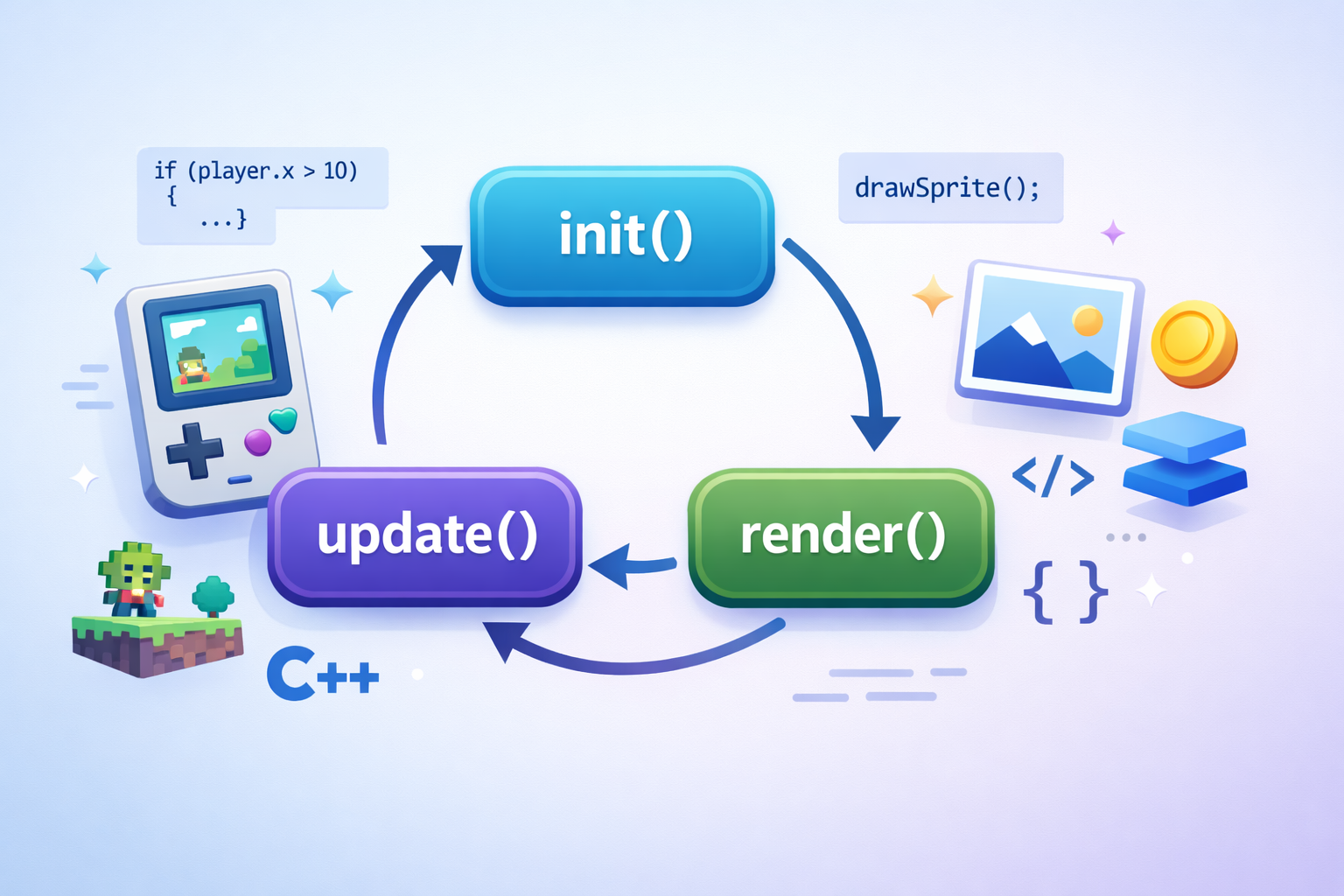
The core of your game logic is implemented in the game loop, which consists of three main functions: init(), update(), and render().
-
init(): This function is called once when the game starts. Use it to initialize game variables, load assets, and set up the initial game state. -
update(uint32_t time): This function is called repeatedly to update the game state. It receives the elapsed time since the game started, allowing you to implement game logic, handle input, and update animations. -
render(uint32_t time): This function is called to render the game’s graphics. It also receives the elapsed time, which can be used for time-based animations and effects.
Here is a minimal example of a game source file game.cpp:
#include "game.hpp"

using namespace blit;

void init() {
    set_screen_mode(ScreenMode::hires); // Set screen mode
  // Initialize game state
}
void update(uint32_t time) {
  // Update game logic
}
void render(uint32_t time) {
    screen.clear(); // Clear the screen
  // Render game graphics
}
Expand this basic structure to implement your game’s unique features and mechanics.
Header file #
It’s common practice to separate declarations from implementations in C++ by using header files. In this case, you can create a game.hpp file to declare your game functions and any global variables or constants.
#include "32blit.hpp"
// Other includes

// Function declarations